Help: Inventory Overview page
By going to the Inventory menu on the left and selecting an inventory item you can see the inventory overview page for that item.
Example page
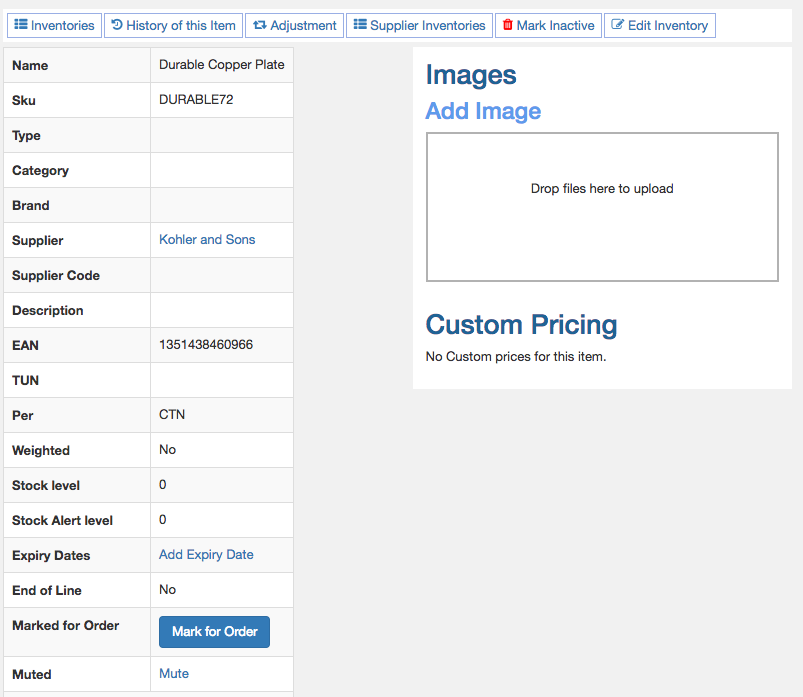
The top left is the name, sku, type, category etc.
On the right will be the ability to add an image and any custom prices for this item.
Expiry Dates
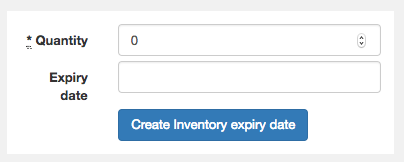
You can add expiry dates to track.
Expiry dates are shown in pick slips to help with selecting the best stock.
When added to a sales order, expiry dates will automatically be updated with the closest expiry date being reduced by the amount of stock sold.
Order
You can mark an item for order so it will appear in your Purchase orders page.
Mute
You can 'mute' an item so it won't appear in any low stock reports for 7 days. You can also 'unmute' an item if it is muted.
Links
Located at the top and bottom of the page handy links.
- Inventories -
- History of this Item - Shows you current sales for the month and monthly sales totals for preceding months.
- Adjustment - Adjust the stock level of this item.
- Supplier Inventories - View all items from this supplier.
- Mark Inactive - Mark this item as inactive. Do this for items you no longer wish to sell.
- Edit Inventory - Edit the details of this item.
Pricing
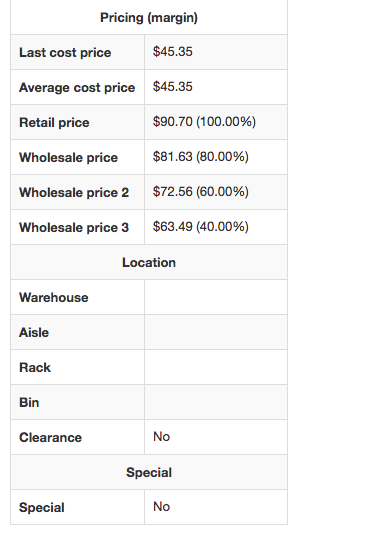
Pricing is only visible by accounts with Admin or Inventory Admin access. Team members with Inventory Part Admin will not be able to see pricing.
Location
The warehouse list can be edited from the main Inventory menu.
Special
If the item is on special or not.
