Help: Stock Take
There are 3 phases to a Stock Take
1. Mark or select items for stock take.
You can mark items as your browse the inventory or you can click on the "Add Inventory to Stock Take link"
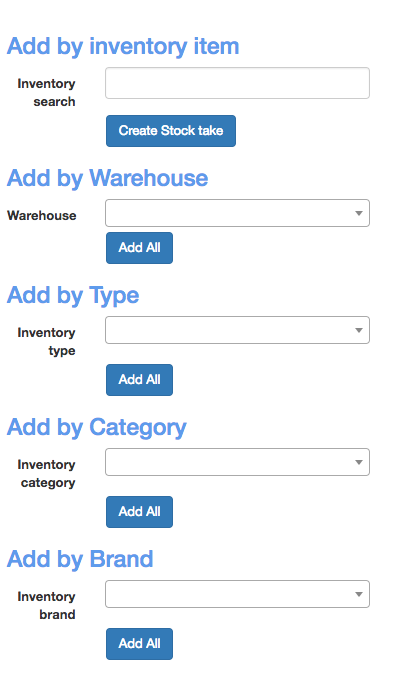
Here you can search for a specific item and have it added to the stock take list.
You can also add by Warehouse, Type, Category or Brand.
Just select which one you want to add and click the 'Add All' button to have all inventory in that selection added to the stock take list.
2. Download the Stock take spreadsheet and update it
The spreadsheet will contain the details for the selected inventory items.
Update the spreadsheet with the new values. The following fields are updated when the completed spreadsheet is uploaded: Warehouse, Aisle, Rack, Bin, Expiry Date, New Stock Level
Pro Tips:
You can hide the 'Current Stock Level' column if you don't want this to be seen when doing the stock take.
You can select a warehouse, download the spreadsheet for those items. Then Delete them. Select another Warehouse and download the spreadsheet for those items.
3. Upload the completed stock take spreadsheet.
This will update all stock with the new stock levels and Warehouse, Aisle, Rack, Bin, Expiry Date, New Stock Level fields.
This will remove any stock take entries that match what is in the spreadsheet.
Inventory will still be processed even if it is not in the stock take list.
