Help: Creating a Purchase Order
To start creating a purchase order, go to the "Purchase Orders" menu on the left and select "New Purchase Order"
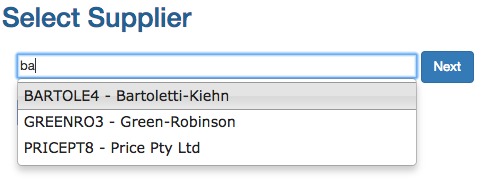
Now search for and select the supplier you want to create the purchase order for.
Adding Inventory Items
You can add Inventory items by searching for them and selecting them.
When searching Inventory items will list the SKU in bold, followed by the name and then the current stock level.

Once selected the line will update with the Inventory item name and price.
Change the quantity to the desired amount.
You can modify the price if the cost price will be changing with this order. This won't take effect until you receive the goods.
You can click remove on the right hand side to remove the item from the order.

Items Marked for ordering.
Any items that were "Marked for Ordering" that belong to this supplier will appear here.
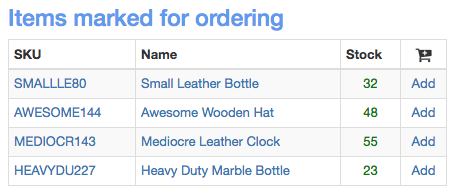
Pro Tip: You can click the name to add it the purchase order, not just the add link.
Low Stock items
Items that are below the "Low Stock Alert Level" in default settings or below their own individual low stock level will appear here.
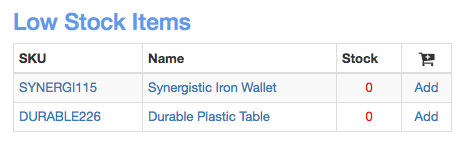
Pro Tip: You can click the name to add it the purchase order, not just the add link.
Back Ordered Items
Back ordered items from customers for this supplier will appear here. The total is across all customers.

Pro Tip: You can click the name to add it the purchase order, not just the add link.
Predicted Low Stock Items
Stock predicted to expire in the next 7 days for this supplier will appear here.
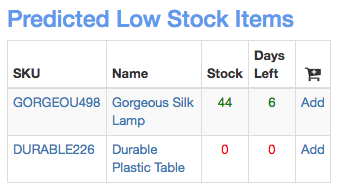
Pro Tip: You can click the name to add it the purchase order, not just the add link.
Save the Purchase Order
Include Prices in PO means if the prices will be included in the PO spreadsheet
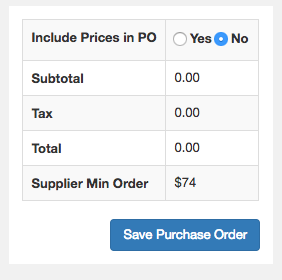
NOTE: No changes are saved until you press the save button.
You can edit the PO as much as you want until you are ready to place the order.
Place the order with the supplier.
You can now download the P.O as an Excel file and send that to the supplier or enter the order with them directly.
Once done, click the "Mark order as placed" button to note the order has been placed.
You can edit the PO once it has been marked as placed in case you have last minute changes that need to be added.
