Help: Creating a Sales Order
To start creating a sales order, go to the "Sales Orders" menu on the left and select "New Sales Order"
Now search for and select the customer you want to create the sales order for.
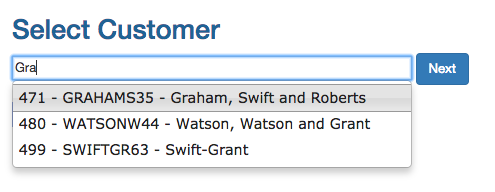
Delivery Address and Date
Select the delivery address. This will default to the primary delivery address for that customer.
Set the delivery Date. This will be the Invoice date. It will default to today's date.

Adding Inventory Items
You can add Inventory items by searching for them and selecting them.
When searching Inventory items will list the SKU in bold, followed by the name and then the current stock level. If there is a description for the item, that will be listed too.
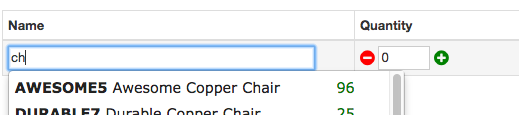
Once selected the line will update with the Inventory item name and price.
Change the quantity to the desired amount.
You can click remove on the right hand side to remove the item from the order.

Frequent Items
Customers frequent items are automatically generated and you can see them on the bottom left of the form.

Use the search to quickly narrow down the list to what the customer is after, this is a lot quicker than using your eyes.
Searching for clock restricted the list to the *clock** items*
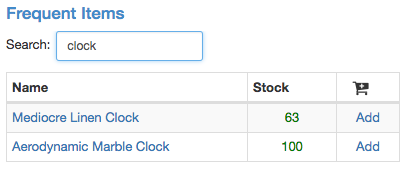
Pro Tip: You can click the name to add it the sales order, not just the add link.
Back ordering items
If an item is out of stock and the customer would like to back order it, you can add it to the back ordered list for that customer.
Once the time is in stock you can click "Add & Remove" to add it to the order and remove it from the back order list.

Clearance Item
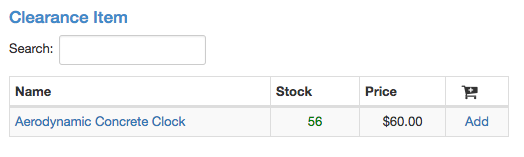
Any clearance items are listed in the Clearance Items section. You can press add to add them to the sales order.
Delivery and Save
You can add any notes to the order and set if it is delivery or pick up.
If a default delivery cost is set via settings, then it will be added if delivery is selected.
When first saving the order, it is best to set it to Draft so you can make any changes.
If the order is final, then select Final.
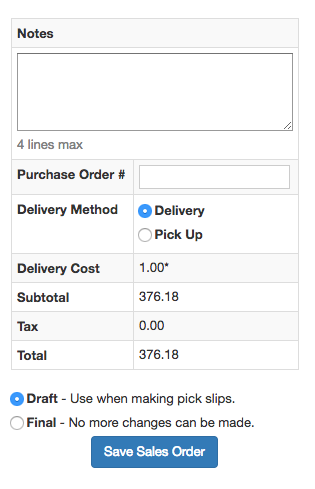
NOTE: No changes are saved until you press the save button.
