Help: Add New Inventory
To add a new inventory item, click on "Inventory" on the left hand side and then click "New Inventory"
Example form
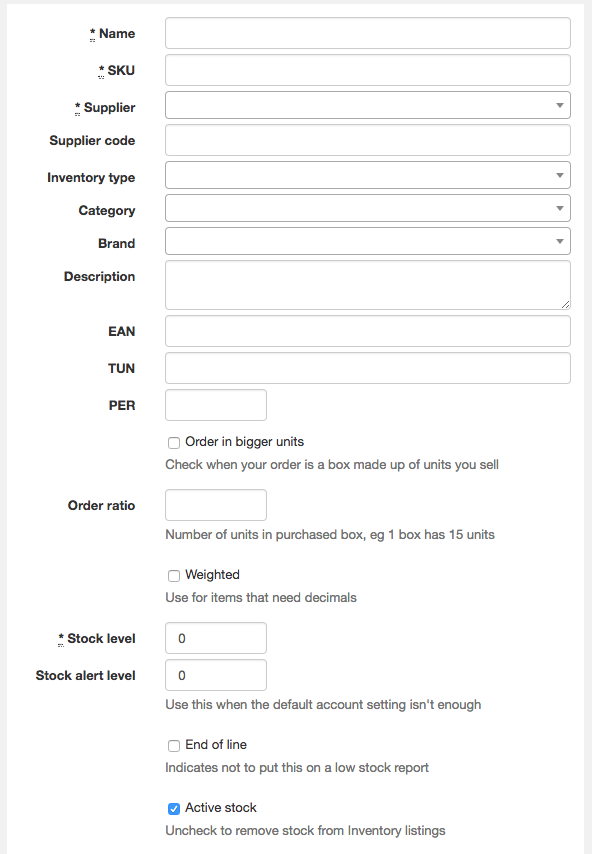
- Name - This the name of the item.
- SKU - This is a unique internal code you use to reference the item.
- Supplier - This is the primary Supplier for this item.
- Supplier code - This is the code that the supplier uses for this item. Used when ordering.
- Inventory type - List of values can be changed from the Inventory menu.
- Category - List of values can be changed from the Inventory menu.
- Brand - List of values can be changed from the Inventory menu.
- Description - Describes the item. Used in eCommerce and Sales orders.
- EAN - EAN code.
- TUN - TUN code.
- PER - Describes the type of unit, eg CTN, TIN, Bag
- Order in bigger units - Used when you purchase a box of items as a single unit from a supplier but sell the individual items.
- Order ratio - Number of items in a unit when "Order in bigger Units" is checked.
- Order PER - Describes the type of purchase unit, eg CTN, TIN, Bag
- Weighted - Check this for items that don't have a constant unit amount and instead have a variable weight per item.
- Stock Level - Initial stock level.
- Stock alert level - At what level should the stock be added to low stock alert report.
- End of Line - Check when you are going to no longer sell this item and don't wish to receive low stock alerts.
- Active stock - Check to make sure the stock is available to search orders.
Pricing
Note: Only team members with Owner, Admin or Inventory Admin (NOT Inventory Part Admin) have access to pricing.
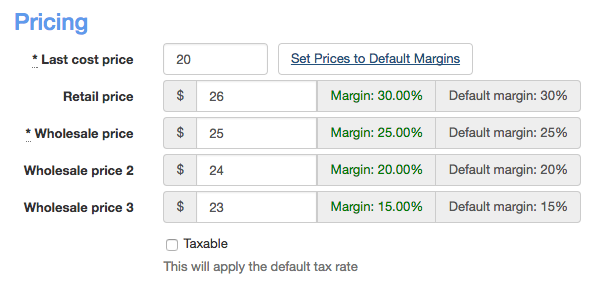
- Last Cost Price - This is the cost to you of buying the item.
- Set Prices to Default Margins - Click this to have the prices set to the default margins as per your "Default settings" under "Settings"
- Pricing - You can adjust pricing for each tier and get real time feedback on what the margin is.
- Taxable - Check if tax needs to be applied to the sale of this item.
Location

- Warehouse - List of values can be changed from the Inventory menu.
- Aisle/Rack/bin - Refers to physical stock location in warehouse.
Clearance

- Clearance Item - Check to have this item added to the list of clearance items in the sales order and eCommerce pages. The idea is that team members will mention these to customers in order to sell them.
Special

- Mark as Special - Check to have this item marked as special with custom pricing.
- Special Price - Sets the price
- Special Start date - Sets the start date of the special. Leave blank to have the special take effect immediately.
- Special End date - Sets the end date of the special price. Leave blank to have the special go on indefinitely.
- Apply to (*) - Check which price list this applies to. Only customers in those price lists will receive the special price.
